
Updated August 2026.
Two ways get the job done on an ASUS TUF. Press Fn and the arrow keys for instant preset colors with zero software, or open Armoury Crate for full custom RGB and effects. That is the short version. The rest of this article covers both properly, plus the part every other page skips: what to do when the color refuses to change, and why most TUF units in India only give you a handful of colors instead of a full rainbow.
I run a TUF Gaming A15 as my travel machine, so this is the exact process I use. It takes about ten seconds once you know which method your model supports.
Method 1: Change the color with the Fn key (fastest, no software)
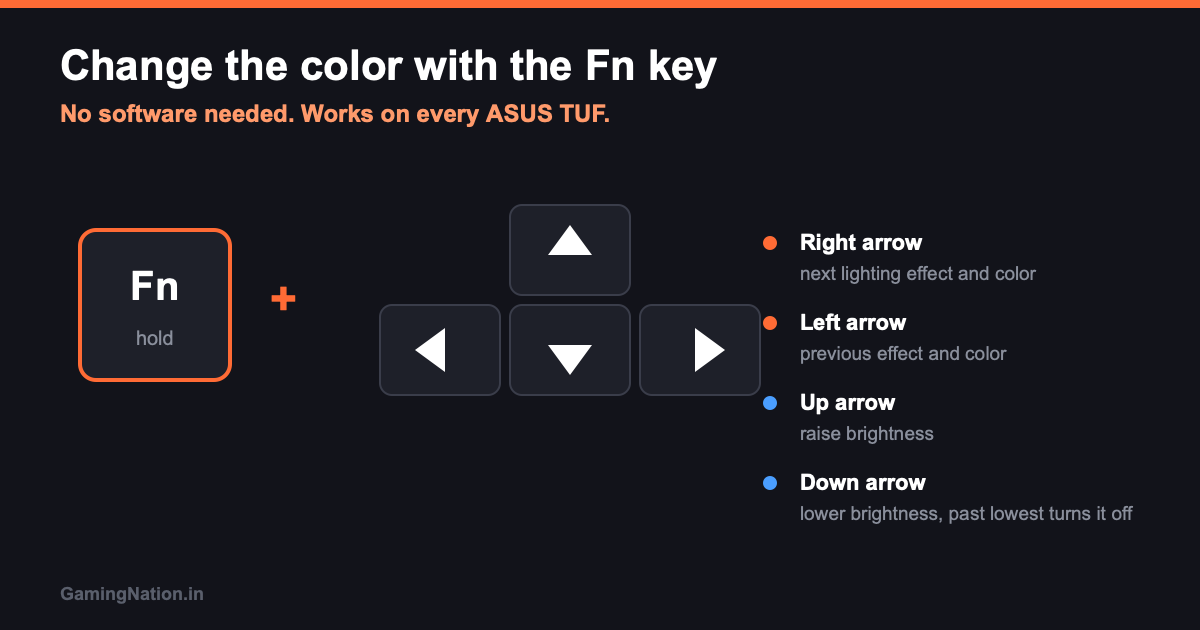
This is the method most people are actually looking for, and it needs nothing installed. Every TUF keyboard has a backlight cluster mapped to the Fn key. Hold Fn and use the arrow keys:
- Fn + Right Arrow: cycles forward through the lighting effects (Static, Breathing, Strobe, and on some units Color Cycle).
- Fn + Left Arrow: cycles backward through the same effects.
- Fn + Up Arrow: raises keyboard brightness. There are three levels plus off.
- Fn + Down Arrow: lowers brightness, and one more press past the lowest level turns the backlight off completely.
Here is the catch nobody warns you about. The Fn shortcut only rotates through the colors ASUS baked into the firmware. On a single-zone TUF that is usually red by default, and you cannot pick a custom shade this way. If you want a specific color, say a clean cyan or your clan color, you need Armoury Crate. Skip to Method 2 for that.
Method 2: Change the color in Armoury Crate (full control)
Armoury Crate is the ASUS app that owns your RGB, fan curves, and performance modes. This is where you pick an exact color and set the effect the way you want it, not the way the firmware defaults to.
- Open Armoury Crate from the Start menu or the system tray. No app? Most newer TUF laptops ship with a lightweight stub called MyASUS or Armoury Crate SE. Open MyASUS, go to Customer Support, and let it pull the full Armoury Crate. On a clean Windows reinstall you grab it from the official ASUS support page for your exact model, never a random mirror.
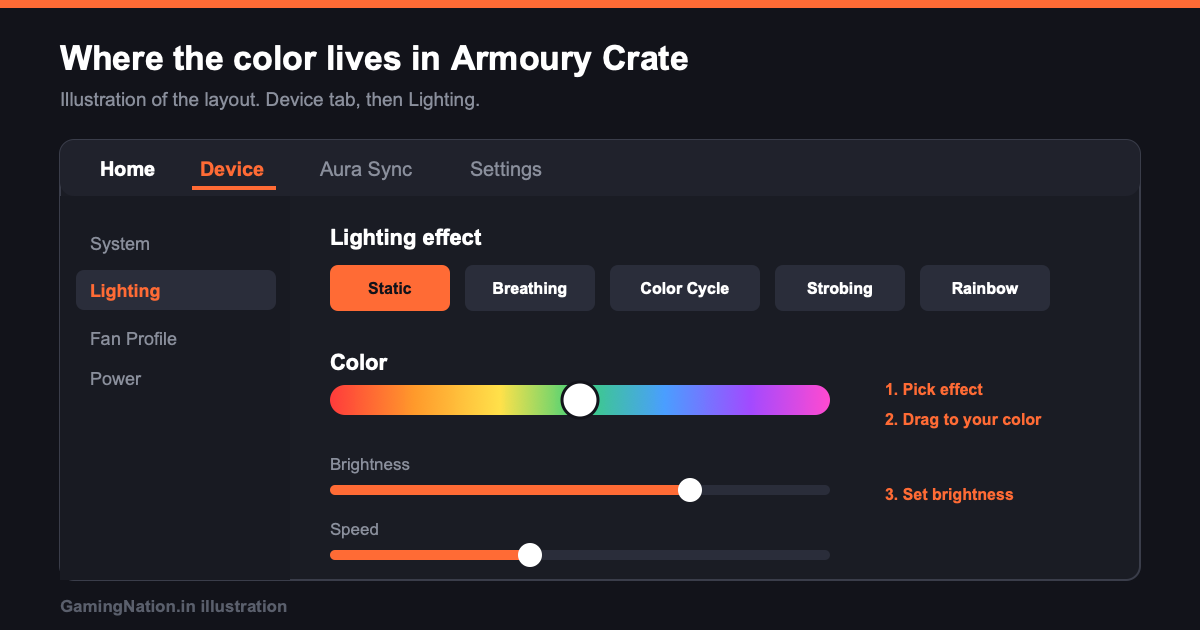
- Click the Device tab at the top.
- Select Lighting in the left sidebar.
- Choose an effect: Static, Breathing, Color Cycle, Strobing, Rainbow, or Smart. Static plus a single color is what most players want.
- Open the color picker and set your shade. Drag the brightness and speed sliders to taste.
- Set AniMe or Aura sync options only if you own peripherals you want matched. For the laptop keyboard alone, ignore them.
Set it once and Armoury Crate remembers it across restarts. If your color resets every time the laptop wakes from sleep, that is a known behavior with a fix further down.
Method 3: Custom effects with Aura Creator
Aura Creator lives inside Armoury Crate and is for people who want more than a flat color. Layered animations, color that shifts across a timeline, patterns that ripple across the keys. On an older single-zone TUF it is overkill. On a newer per key TUF it is where the fun is.
- In Armoury Crate open the Lighting section.
- Click Aura Creator at the bottom of the page. If it is not installed, Armoury Crate offers to add it.
- Add a lighting layer, pick your colors, and set the effect timing.
- Save the profile and set it as active.

Does your TUF have per-key RGB or just zones?
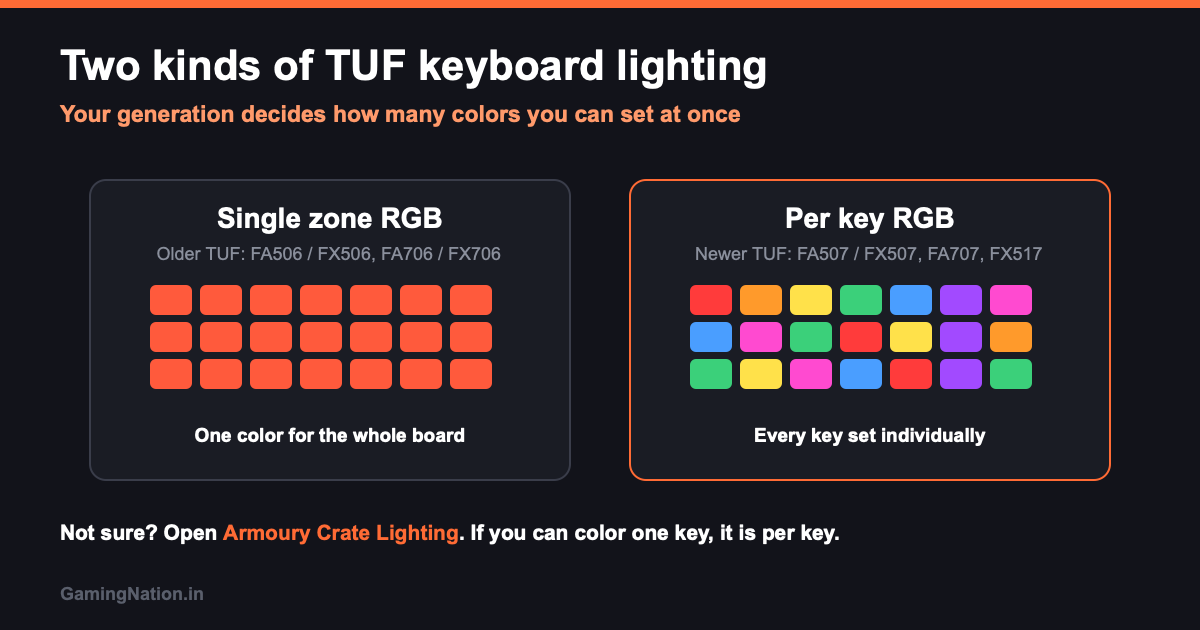
This is the single biggest source of confusion, and it is why one person gets a full rainbow and another only gets one solid color. TUF keyboards come in three lighting types, and your model decides which controls even do anything.
| Backlight type | What you can change | Which TUF has it |
|---|---|---|
| Single zone RGB | One color for the whole keyboard, plus effects and brightness | Older gen: A15 and F15 FA506 or FX506, A17 and F17 FA706 or FX706 (roughly 2020 to 2021) |
| Per key RGB | Every key set to its own color, full Aura Sync effects | Newer gen: A15 and F15 FA507 or FX507, A17 and F17 FA707 or FX707, TUF Dash FX517 (2022 onward) |
If your keyboard is single zone, you have not done anything wrong. You physically cannot set two colors at once. That is the older TUF generation, not a settings problem. Not sure which one you own? Open Armoury Crate, go to Lighting, and try to color a single key. If you can, it is per key. If the whole board changes together, it is single zone. When per key control matters to you, check the model number before you buy: the newer FA507 and FX507 style units give it, the older FA506 and FX506 units do not. Our best gaming laptops under 70000 and under 50000 breakdowns cover which units are worth it.
Keyboard color will not change? Six fixes
People search this exact problem constantly, so here is the checklist in the order that actually solves it.
- Armoury Crate is not installed. The Fn keys give you presets, but custom color needs the app. Install it from MyASUS or the official ASUS support page.
- The Aura service is stopped. Press Win + R, type services.msc, find the ASUS lighting or Aura service, and set it to Automatic, then start it.
- The System Control Interface driver is missing. After a Windows reinstall the Fn hotkeys go dead until you install the ASUS System Control Interface driver from support. This is the number one reason Fn does nothing.
- Your model is single zone. If you own an older single-zone TUF and only one color takes at a time, that is the hardware, covered above. Nothing to fix.
- Windows or BIOS is out of date. Run MyASUS update, then Windows Update. Old firmware breaks lighting after major Windows builds.
- Armoury Crate is glitched. Fully close it from the tray, reopen as administrator. If it still refuses, uninstall using the official Armoury Crate Uninstall Tool, reboot, reinstall clean. Do not just delete the folder, it leaves broken services behind.

How to keep the backlight on (or off) when the laptop sleeps
Two common annoyances, both fixable in Armoury Crate.
- Color resets after sleep: in Armoury Crate open Lighting, then the sync or system settings, and enable the option to keep lighting on during sleep or on battery. On some builds it sits under the AURA power settings.
- Want it off to save battery: Fn + Down Arrow past the lowest level kills the backlight instantly. For a permanent rule, set the keyboard lighting to turn off on battery inside Armoury Crate. On a TUF that claws back real runtime on long trips.
FAQ
Is Armoury Crate the only way to change the keyboard color on an ASUS TUF?
No. Fn plus the arrow keys cycles through preset colors and effects with no software. Armoury Crate is only needed when you want a specific custom color rather than the firmware presets.
How do I change the keyboard color without Armoury Crate?
Hold Fn and press the Right or Left arrow to switch effects and preset colors, and Fn plus Up or Down for brightness. This works out of the box as long as the ASUS System Control Interface driver is installed.
Why can I only get one color on my TUF keyboard?
You have an older single-zone TUF, which lights the whole board in one color at a time. You get the preset shades and effects but not per key colors. The newer per key models let you set every key separately.
Can I change the keyboard color on the ASUS TUF A15, A17, or F15?
Yes, all of them support the Fn key presets and Armoury Crate. Whether you get single color or per key control depends on the generation. Older FA506 and FX506 units are single zone, newer FA507 and FX507 units are per key. Check your model number.
How do I fix the RGB keyboard when the color will not change at all?
Install the ASUS System Control Interface driver and make sure the Aura lighting service is running under services.msc. If custom color still fails, uninstall Armoury Crate with the official uninstall tool, reboot, and reinstall it clean.
How do I turn the ASUS TUF keyboard backlight off completely?
Press Fn and the Down arrow repeatedly until it goes past the lowest brightness. The backlight switches off. To make it automatic on battery, set that rule in Armoury Crate under Lighting.
How do I download Armoury Crate for my ASUS TUF?
Open MyASUS, which ships on the laptop, go to Customer Support and let it fetch Armoury Crate. On a fresh Windows install, download it only from the official ASUS support page for your exact model number.
Does the ASUS TUF have per-key RGB?
The newer TUF generation does. Units from 2022 onward with model numbers like FA507, FX507, FA707, FX707, and the TUF Dash FX517 have per key RGB with Aura Sync. Older units like FA506 and FX506 are single zone, one color at a time. Check your model number to be sure.
Related guides
- Best gaming laptops under 70000 in India
- Best gaming laptops under 50000
- HP Victus vs Lenovo IdeaPad Gaming 3
- Best cooling pads for gaming laptops in India
Written by Harsh Talreja, who has owned three ASUS laptops and reset the RGB on every one of them at least twice.