

Updated October 2026 with current Indian retail prices.
How to Reduce Ping in Valorant India (2026): ISP Comparison, Mumbai Server Guide, DNS Settings
You are Immortal in aim. Your crosshair placement is clean. Your game sense has improved over months of ranked grind. And yet, every other round, your ping spikes to 120ms and you lose a gunfight you should have won. The enemy peeks, you shoot first, the server disagrees. You die. You alt-tab, stare at the ping graph, and rage.
The frustrating part is that most ping-fix guides online are written for US or EU players. They talk about East Coast servers, Comcast routing, and ISPs that have nothing to do with India. You search “Valorant high ping India fix” and you get an article from Driver Easy or DotEsports that tells you to update your drivers and restart your router. Groundbreaking.
This article is different. It is written specifically for Indian players, covering Jio Fiber, Airtel, ACT, and BSNL routing behaviour, the Mumbai server reality, city-by-city ping expectations, and the actual steps that help, ranked by how much they actually improve your game. Some fixes give you 5ms. Others give you 40ms. You need to know the difference before spending time on each.
Before reading further, a few related guides that might help your overall setup: best internet plan for gaming in India, best PC games under 10GB if you want lighter installs, and gear guides like best gaming keyboard under Rs 2000 and best gaming monitors under Rs 10000.
Why Is Your Valorant Ping High in India?
Valorant has a Mumbai server. That is the good news. The bad news is that a Mumbai server existing does not mean your packets are taking a straight line from your router to that server. Indian internet routing is genuinely complicated, and “you have a Mumbai server” does not automatically mean you are getting Mumbai ping.
ISP Routing: The Main Culprit
The single biggest cause of high Valorant ping in India is ISP routing. Your packets from, say, Delhi might travel: Delhi router to a Jio backbone node, then out to a Singapore IX (internet exchange), then routed back to Mumbai. Instead of a direct 30ms Delhi to Mumbai path, you are doing a 200ms round trip through Singapore.
This is not unique to Jio. Airtel and BSNL both have routing inefficiencies depending on your city and the time of day. ACT Fibernet, which runs its own regional network in Bangalore, Hyderabad, Chennai, and a few other cities, tends to have tighter routing to Mumbai because its backbone does not go through international exchanges for domestic traffic.
You can verify this yourself with a traceroute. Open Command Prompt and type tracert valorant.ap.servers.net or trace to the Mumbai server IP. If you see hops going through Singapore, Hong Kong, or any overseas node before bouncing back to India, that is your problem.
Peak Hour Congestion
7PM to 11PM is the worst window for gaming in India. Every family member is home, Netflix is streaming, YouTube is running in the background, and the shared backbone in your area is under load. Jio Fiber is particularly bad during this window. Off-peak you might get 30ms. At 9PM you might get 90ms. Same connection, same server, completely different experience.
WiFi Instead of Ethernet
Most Indian homes have the router in the living room because that is where the ONT box is installed. Your gaming PC or laptop is in the bedroom, 10 to 15 metres away, behind two walls. WiFi adds real latency, 5 to 30ms depending on interference, and more importantly it adds jitter. Jitter is inconsistent ping. 50ms stable is significantly better than 40ms average with 20ms jitter. Jitter is what causes your shots to feel off even when your average ping looks fine.
Background Bandwidth Usage
In most Indian households, someone is always using the internet. Windows Update downloading in the background at 8PM, a family member watching a 4K stream, your phone syncing photos to the cloud. All of this competes with your gaming traffic and can cause ping spikes even when your base ping is fine.
Wrong Server Selection
Sometimes Valorant just connects you to Singapore instead of Mumbai. This can happen if the Mumbai server is under maintenance, if your IP location is detected incorrectly, or if you have not set your region properly. Singapore gives most Indian players 80 to 120ms. If you are consistently seeing 80ms or above and you thought you were on Mumbai, check your actual server first.
Check Which Server You Are Actually Connecting To
Before doing anything else, confirm you are on the Mumbai server. A lot of Indian players assume they are on Mumbai because Riot has a Mumbai datacenter, but Valorant does not always connect you there automatically.
How to Enable Network Stats in Valorant
- Open Valorant and go to Settings (top right gear icon)
- Click on Video
- Scroll to the “Stats” section at the bottom
- Enable Show Network Stats and set it to “Show Always” or “Show on Press”
- The overlay in-game will now show your current ping, packet loss, and the server region
Alternatively, press Shift + F1 in the Practice Range or in a match to toggle the network stats overlay quickly.
The stats overlay shows the server region. You want to see “Mumbai” or “AP” (Asia Pacific South). If you see Singapore, Tokyo, or any other region, Valorant has connected you to the wrong server for your location.
Ping Ranges by Server
| Server | Expected Ping From India | Verdict |
|---|---|---|
| Mumbai (correct) | 20 to 60ms | Good. Investigate ISP routing if above 60ms. |
| Singapore | 80 to 120ms | You are on the wrong server. Check region settings. |
| Tokyo / Seoul | 120 to 180ms | Definitely wrong. Go to Account settings and change region. |
If you are on Mumbai and still getting 80ms or more, the rest of this article is for you. That is an ISP routing or local network issue, not a server issue.
Valorant uses automatic server selection. If you keep landing on Singapore, you can try using Riot’s support to request a region transfer, but for most Indian players the auto-selection correctly picks Mumbai once you are on a stable connection. If it keeps picking Singapore, the Mumbai server may be experiencing issues at that time.
ISP Ping Comparison for Valorant India
These are community-verified approximate ranges based on reports from Indian Valorant players across Discord, Reddit, and gaming forums. Your individual experience will vary depending on your city, your local exchange, the quality of the last-mile connection to your building, and time of day. Use these as a reference point, not a guarantee.
| ISP | Off-Peak Ping | Peak Hours (7-11PM) | Rating | Notes |
|---|---|---|---|---|
| ACT Fibernet BEST | 15 to 30ms | 30 to 50ms | ⭐⭐⭐⭐⭐ | Best gaming ISP in covered cities. Regional backbone, less international routing. |
| Airtel Xstream Fiber | 20 to 35ms | 40 to 70ms | ⭐⭐⭐⭐ | Solid nationwide. More stable than Jio during peak. Good routing to Mumbai. |
| Jio Fiber PEAK ISSUES | 25 to 45ms | 60 to 100ms | ⭐⭐⭐ | Good off-peak but 7PM to 11PM congestion is severe. Worst ISP for evening ranked. |
| BSNL Bharat Fibre | 50 to 90ms | 100 to 150ms | ⭐⭐ | Inconsistent routing, older infrastructure. Not recommended for competitive gaming. |
| Jio 5G / Airtel 5G | 30 to 60ms | 40 to 80ms | ⭐⭐⭐ | Variable. Better than 4G, worse than fibre. Acceptable as backup. |
| Jio 4G / Airtel 4G | 60 to 120ms | 80 to 150ms | ⭐⭐ | Not recommended for competitive Valorant. Jitter is high, ping spikes are frequent. |
ACT Fibernet is only available in select cities: Bangalore, Hyderabad, Chennai, Delhi NCR, Pune, and a handful of others. If you are in a city where ACT operates and you play competitive games seriously, it is worth switching. The difference between Jio and ACT at 9PM on a ranked evening is not marginal. It is significant enough to affect your gunfights.
If you are on Jio Fiber and playing ranked between 7PM and 11PM, you are probably playing at 60 to 100ms right now without realising it. The network stats overlay hides this because it averages out. Check your ping graph after a match. The spike pattern is obvious once you look.
DNS Settings That Actually Help
Your ISP’s default DNS server is often slow. This does not directly affect in-game ping once you are connected to a match, but it affects how quickly Valorant resolves server addresses when you first launch the game, log in, and connect to a match. Slow DNS can add a few extra seconds at launch and can occasionally cause connection hiccups.
Switching to Cloudflare (1.1.1.1) or Google (8.8.8.8) typically gives a 5 to 15ms improvement in connection setup speed. Honest assessment: this is not going to fix 100ms ping, but it takes two minutes to change and has no downside. Do it once and forget about it.
How to Change DNS on Windows 10 and 11
- Press Windows + R, type
ncpa.cpland press Enter. This opens Network Connections. - Right-click your active network adapter (usually “Ethernet” or “Wi-Fi”) and click Properties.
- Select Internet Protocol Version 4 (TCP/IPv4) and click Properties.
- Select “Use the following DNS server addresses”.
- Enter your preferred DNS. For Cloudflare: Preferred
1.1.1.1, Alternate1.0.0.1. For Google: Preferred8.8.8.8, Alternate8.8.4.4. - Check “Validate settings upon exit” and click OK.
- Flush your DNS cache: open Command Prompt as administrator and type
ipconfig /flushdns.
Cloudflare (1.1.1.1) is generally faster in India. Google (8.8.8.8) is more reliable as a fallback. Either works. Do not use your ISP’s DNS. Do not use the many “gaming DNS” services that charge money for this, they are just reselling Cloudflare or Google at a markup.
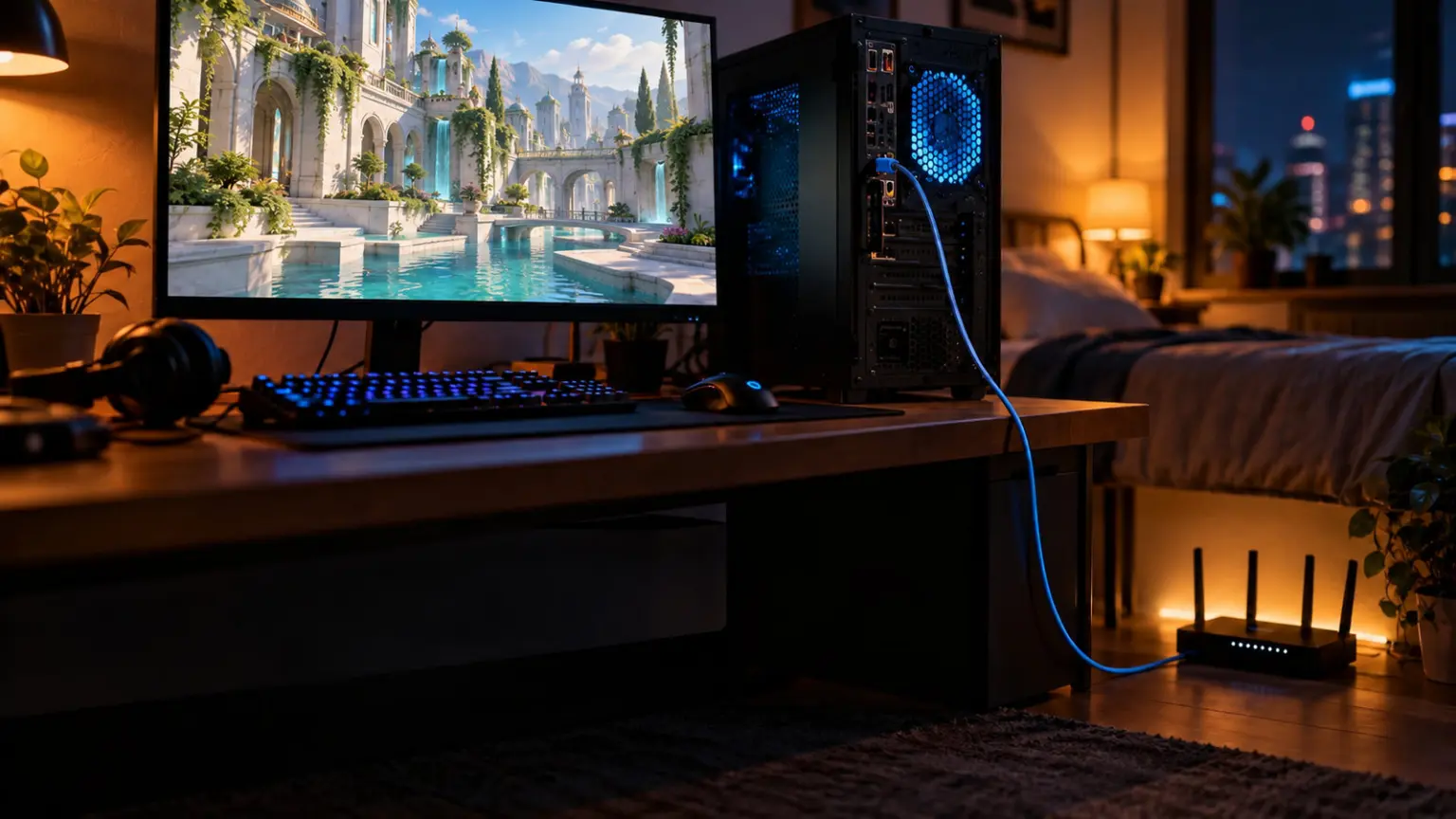
Ethernet Over WiFi Is Non-Negotiable
This is the fix that most Indian gaming setups skip because of the hassle of running a cable. But if you are playing on WiFi, you are losing gunfights you should not be losing. Not because your ping is sky-high, but because WiFi introduces jitter. Your ping might average 45ms but individual packets might spike to 80ms randomly. That spike is when the enemy peeks and your shot registers late.
WiFi adds 5 to 30ms of latency depending on your router, the distance, and interference from neighbouring networks. Interference is worse in Indian apartment buildings where there are 20 WiFi networks all competing on the same channels. The fix is simple but people keep avoiding it.
Your Options for Running a Cable
🔴 15m Cat6 Ethernet Cable
Runs along the wall, takes 20 minutes to set up. Costs Rs 250 to 400 on Amazon. This is the best option if your PC is on the same floor as the router.
🟠 Powerline Adapter
Uses your building’s electrical wiring to carry ethernet. Works if router and PC are on separate floors. Costs Rs 2000 to 4000. Performance is variable depending on wiring quality.
🟡 MoCA Adapter
Uses existing coaxial cable wiring. Rare in Indian homes. Skip unless you already have coax runs in your flat.
🔴 WiFi 6E Router Upgrade
Better WiFi is still WiFi. Upgrading your router reduces jitter slightly but does not eliminate it. Not the right solution for serious competitive gaming.
How to Check if You Are on Ethernet or WiFi
- Press Windows + R, type
ncpa.cpl, press Enter - Look at your active adapter. If it says “Wi-Fi” or “Wireless”, you are on WiFi. If it says “Ethernet”, you are wired.
- Alternatively, check the taskbar network icon. A screen icon means ethernet. The fan-shaped icon means WiFi.
Jio and Airtel technicians typically install the ONT/router in the living room because the optical fibre enters the building there. Your gaming setup is in the bedroom. The solution most Indian gamers use: a 15m or 20m flat ethernet cable run along the skirting board. Flat cables (not round) look much cleaner against walls. Cost is Rs 300 to 500. One-time setup. Completely worth it.
In-Game Settings That Reduce Lag
Valorant has a few settings that directly affect your network performance. These are often overlooked because people focus on graphics settings first.
Network Buffering
Go to Settings, then General, and find “Network Buffering”. Set this to Minimum. The default setting buffers packets to smooth out network hiccups, which increases your effective latency. Minimum gives you the lowest possible delay at the cost of slightly less smoothing. If you have a stable connection, minimum is always better for competitive play.
Multithreaded Rendering
This is a graphics setting but it matters for perceived lag. On low-end PCs (Core i3, Ryzen 3, 8GB RAM), Multithreaded Rendering can cause frame time spikes that feel like ping spikes. If you are on a budget PC and your game feels laggy even when the ping number looks okay, try turning this off. On a mid-range or high-end PC, leave it on.
Close the Riot Client Overlay
The Riot Games launcher overlay uses background bandwidth for social features, game updates, and analytics. Alt-Tab out after your game starts and close or minimise the Riot Client window. It does not close Valorant, just the launcher. This frees up a small amount of bandwidth and CPU.
Vanguard in the Background
Riot Vanguard (the anti-cheat) runs at the kernel level and cannot be fully disabled during play, but you can stop it from running on Windows startup when you are not gaming. In Task Manager under the Startup tab, you can see Vanguard listed. This does not help in-game ping but reduces background CPU usage when you are not playing.
Windows Network Optimizations
Windows has several default network features that are optimised for general browsing and file transfer, not real-time gaming. These changes help reduce latency and jitter. Each of these takes 2 to 5 minutes and the improvements are real, 5 to 20ms combined in typical cases.
Disable Nagle’s Algorithm
Nagle’s Algorithm bunches small packets together before sending them to reduce network overhead. Great for file transfers, terrible for real-time gaming where you want every packet sent immediately. Disabling it can reduce latency by 5 to 15ms.
You are editing the Windows registry. Back up your registry first (File, Export in Registry Editor) before making changes. An incorrect registry edit can cause system issues. Follow the steps exactly.
- Press Windows + R, type
regedit, press Enter. Click Yes to allow changes. - Navigate to:
HKEY_LOCAL_MACHINESYSTEMCurrentControlSetServicesTcpipParametersInterfaces - You will see multiple subkeys (long strings of letters and numbers). You need to identify your active network adapter’s key. The easiest way: open Command Prompt, type
ipconfig /all, find your active adapter and note the “DHCP Server” IP. Then look through the registry subkeys for the one that has a “DhcpServer” value matching your router’s IP. - Once you find the right subkey, right-click in the right panel, select New > DWORD (32-bit) Value.
- Name it
TcpAckFrequency. Double-click it and set the value to 1. - Create another DWORD value named
TCPNoDelay. Set it to 1. - Restart your PC for changes to take effect.
Disable Windows Auto-Tuning
Windows Auto-Tuning adjusts the TCP receive window size dynamically. For gaming, a fixed window size performs better. Run this in Command Prompt as Administrator:
Set Valorant to High Priority in Task Manager
- Start a game or the Practice Range in Valorant
- Press Ctrl + Shift + Esc to open Task Manager
- Go to the Details tab
- Find
VALORANT-Win64-Shipping.exe - Right-click it, select Set Priority > High
- Note: this resets every time you restart Valorant. For a permanent solution, use a startup script.
Kill Background Apps That Eat Bandwidth
These are the main offenders that silently consume your bandwidth during ranked matches:
- Windows Update: Pause updates for 7 days when you are in an active gaming session. Settings > Update and Security > Pause Updates.
- OneDrive: Right-click the OneDrive tray icon and select “Pause syncing” before gaming.
- Steam: In Steam settings, under Downloads, disable “Allow downloads during gameplay”.
- Discord video calls: Voice is fine. Video calls on Discord while gaming eat significant bandwidth and CPU.
- Browser tabs: YouTube in the background is a real source of bandwidth competition. Close or pause it.
Peak Hour Workarounds
Indian internet peaks hard between 7PM and 11PM. This is not your fault and there is no technical fix at your end that eliminates it. The congestion is in your ISP’s backbone and local exchange, not in your home network. What you can do is work around it.
The Simplest Fix: Change Your Play Schedule
If you can play ranked before 7PM or after 11:30PM, your ping on Jio Fiber drops from 80 to 100ms back to 25 to 40ms. That is a genuine 50ms improvement for zero cost, zero tweaks, zero setup. College students who can play in the afternoon have a real network advantage over people grinding ranked at 9PM on Jio.
After 11:30PM, network congestion clears significantly on most Indian ISPs. This is why the Indian Valorant community jokes about “midnight warriors” grinding Immortal while everyone else is asleep. They are not just grinding ranked because they have free time. The ping is genuinely better.
If You Must Play During Peak Hours
- Cut off other devices on the network. Ask family members to pause streaming during your ranked session. A 4K Netflix stream uses 25 Mbps. Your entire gaming session uses under 1 Mbps. One stream is 25x your gaming bandwidth.
- Enable QoS on your router. Most modern routers have Quality of Service settings. Log into your router (typically 192.168.1.1 or 192.168.0.1), find QoS settings, and add Valorant or your PC’s MAC address as a high-priority device. This tells the router to send your gaming traffic first when the network is congested.
- Use 2.4GHz WiFi as a backup check. If your router has separate 2.4GHz and 5GHz networks, make sure your PC is on 5GHz (or ethernet). 2.4GHz has more interference in Indian apartments.
- Consider a dedicated gaming plan. Some ISPs like Airtel offer plans with QoS prioritisation baked in. Worth checking if your area supports it.
Router QoS Setup (Quick Version)
Router interfaces vary by brand, but the general path is similar for most home routers used in India (TP-Link, D-Link, Netgear, and OEM routers from Jio/Airtel):
- Open a browser and go to your router’s admin page (usually
192.168.1.1) - Log in. Default credentials are often on a sticker on your router. For Jio routers, check the bottom label. For Airtel, default is usually admin/admin or admin/password.
- Find “QoS”, “Traffic Prioritization”, or “Bandwidth Management” in the menu
- Add your PC’s MAC address or local IP to the highest priority tier
- Save and restart the router
Should You Use a VPN or ExitLag?
This comes up constantly in Indian Valorant Discord servers. Someone gets 100ms, someone in the thread says “bro use ExitLag”, someone else says “bro VPN”, and the thread derails. Here is the honest breakdown.
For the tool by tool breakdown of ExitLag class software, see our gaming VPN and ping booster comparison for India.
Regular VPNs: Almost Always Useless
ExpressVPN, NordVPN, Surfshark, and every generic VPN you see advertised will almost certainly increase your Valorant ping, not decrease it. These VPNs route your traffic through servers outside India (usually Singapore, US, or Europe) to hide your IP. That is the opposite of what you want when you are trying to connect to a Mumbai server as efficiently as possible.
The only scenario where a regular VPN could theoretically help is if your ISP is actively throttling gaming traffic and the VPN hides the traffic type. This is rare in India. Do not buy a VPN for gaming ping reduction.
ExitLag and Mudfish: Sometimes Useful
ExitLag and Mudfish are gaming-specific routing services, not traditional VPNs. They do not encrypt your traffic the way NordVPN does. Instead, they route your packets through their own optimised server infrastructure specifically to reach game servers faster than your ISP’s default routing.
When they help: If your ISP (especially BSNL or certain Jio routing configurations) is sending your packets through Singapore before reaching Mumbai, ExitLag can override that with a direct India-to-Mumbai path. In these specific cases, players have reported ping improvements of 20 to 40ms.
When they do not help: If your ISP already has good routing to Mumbai (Airtel, ACT in good areas), ExitLag will add a small overhead and slightly increase your ping. You will be paying Rs 350 per month to make things slightly worse.
The right approach: Both ExitLag and Mudfish have free trials or pay-per-use options. Test it for 3 to 5 days. If your average ping drops by 15ms or more, it is worth the subscription. If it does not help or makes things worse, cancel.
| Service | Cost | Best For | Verdict |
|---|---|---|---|
| ExitLag | ~Rs 350/month | Bad ISP routing (BSNL, some Jio configs) | Try free trial first |
| Mudfish | Pay-per-traffic (~Rs 100/month typical) | Occasional routing issues, casual use | Good for testing |
| Regular VPN | Rs 200 to 700/month | Nothing gaming-related | Do not use for ping |
| ExpressVPN / NordVPN | Rs 400 to 800/month | Privacy, geo-unlocking | Will increase ping |
City-Wise Ping Expectations for Valorant India
These are the approximate ping ranges Indian players can realistically expect to the Mumbai Valorant server, based on distance to Mumbai and typical ISP routing quality for each city. These assume a fibre connection on a reasonably good ISP during off-peak hours.
| City | Best Available ISP | Expected Ping (Off-Peak) | Peak Hour Ping | Notes |
|---|---|---|---|---|
| Mumbai | ACT / Airtel | 5 to 20ms | 10 to 35ms | Server is physically here. Best ping in India. |
| Pune | ACT / Airtel | 15 to 30ms | 25 to 50ms | Close to Mumbai. Excellent gaming city for ping. |
| Bangalore | ACT Fibernet | 20 to 40ms | 35 to 65ms | ACT has strong regional backbone here. Airtel also good. |
| Hyderabad | ACT Fibernet | 25 to 45ms | 40 to 70ms | Good connectivity. ACT recommended over Jio. |
| Chennai | ACT / Airtel | 25 to 45ms | 40 to 75ms | Farther from Mumbai but good ISP infrastructure. |
| Delhi / NCR | Airtel Xstream | 30 to 55ms | 45 to 90ms | Distance adds ping. Airtel routes better than Jio from Delhi. |
| Kolkata | Airtel | 35 to 65ms | 60 to 110ms | Routing can be inconsistent. BSNL is particularly bad here. |
| Jaipur | Airtel | 35 to 60ms | 55 to 95ms | Fewer ISP options. Airtel is clearly best available choice. |
| Lucknow | Airtel | 40 to 70ms | 65 to 110ms | Routing through Delhi hub adds latency. ExitLag worth testing here. |
If you are in Delhi on ACT Fibernet and getting 25ms, great. If you are in Lucknow on BSNL getting 150ms, this table shows you the target to aim for when you switch ISPs. Use it as a benchmark, not as a promise.
All Fixes Ranked by Impact
Time is limited. Here is every fix in this article ranked by how much it typically improves your Valorant ping, from highest to lowest impact. Do the top ones first.
🔴 Switch to Ethernet
Eliminates jitter. Reduces average latency by 5 to 30ms. The single most impactful change for anyone on WiFi.
🔴 Switch ISP
Going from BSNL or Jio (peak) to ACT or Airtel can give you 30 to 80ms improvement. Biggest possible change.
🔴 Play Off-Peak
Before 7PM or after 11:30PM on Jio. Free. 20 to 50ms improvement with zero setup.
🟠 Kill Bandwidth Hogs
Stop Windows Update, OneDrive, Steam downloads. Reduces peak-hour spikes significantly.
🟠 Disable Nagle’s Algorithm
Registry edit. 5 to 15ms reduction in typical cases. One-time effort.
🟠 Set Network Buffering to Minimum
In-game setting. Reduces effective latency on stable connections. Two clicks.
🟡 Change DNS to Cloudflare
5 to 15ms improvement in connection setup. Minimal impact on in-game ping but worth doing.
🟡 Disable Auto-Tuning
netsh command. Helps reduce jitter on some configurations.
🟡 ExitLag (if bad ISP routing)
Only worth it for specific routing problems. Test with free trial before paying.
⬜️ Set Process Priority to High
Minimal ping impact. More useful for frame time consistency on lower-end PCs.
FAQ: Valorant Ping Issues in India
The Honest Summary
There is no magic fix for Indian Valorant ping. Anyone selling you a software tool that promises 30ms guaranteed is either lying or has a very specific routing problem that their tool happens to fix.
The real improvements come from getting off WiFi, getting on a better ISP, and not playing on Jio during prime time. Those three changes alone will take most Indian players from 80 to 120ms down to 25 to 50ms. Everything else in this article, the DNS change, the Windows tweaks, the Nagle’s Algorithm registry edit, those are margin improvements. Real but marginal.
The Indian Valorant community has been frustrated about ping for years because all the guides online are written for NA players. Riot added a Mumbai server and it helped, but ISP routing kept being the problem nobody talked about. Now you know exactly what to check, what to change, and what to ignore.
Get on ethernet. Check your server. If you are on Mumbai and still above 60ms off-peak, run a traceroute and look for Singapore hops. That is your next call to your ISP.